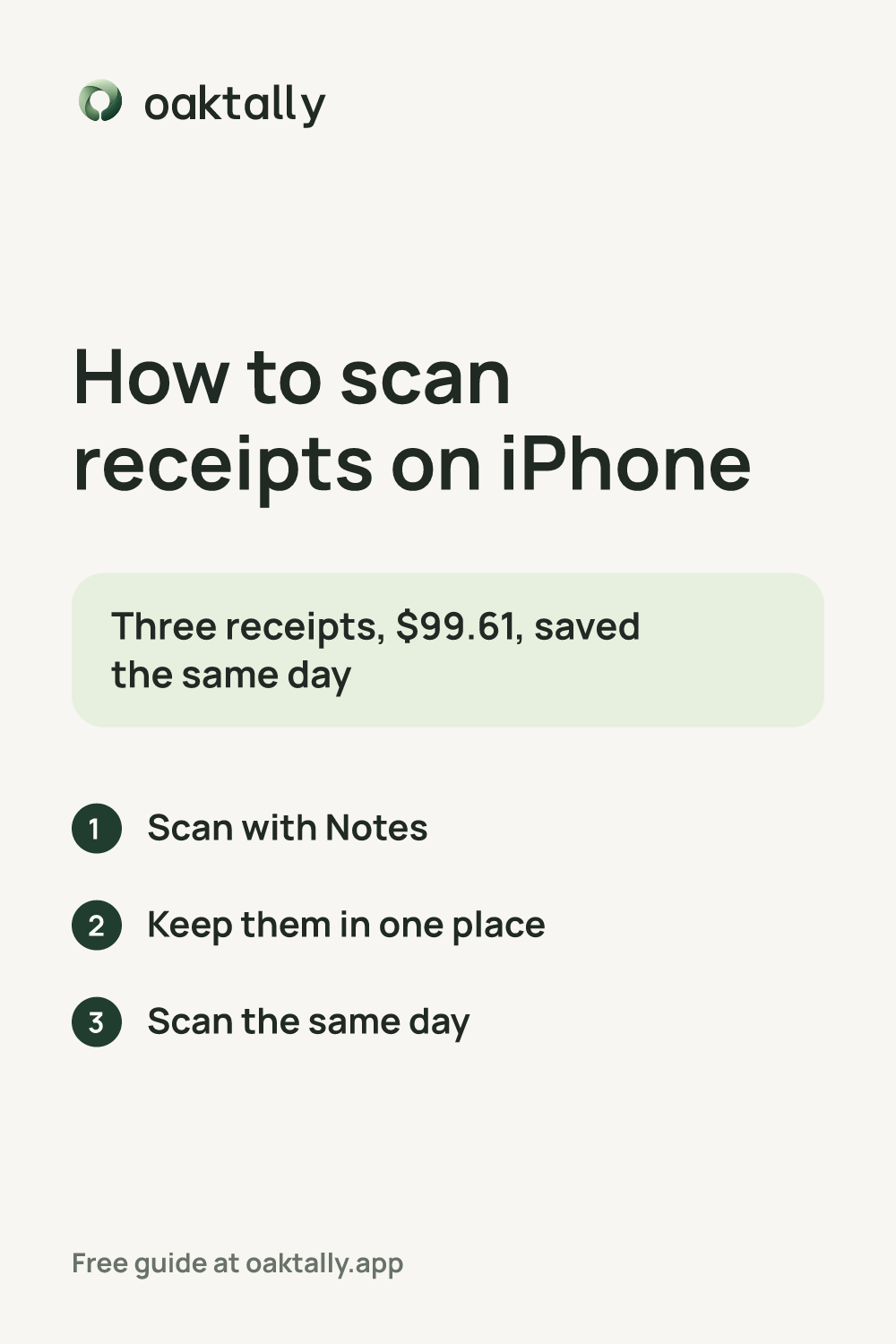
1Scan with Notes
Open Notes and start a note. Tap the attachment button, then Scan Documents. Hold the phone over the receipt, adjust the corners and tap Keep Scan.
2Keep them in one place
Use one note or folder per month, like Receipts October. Put the store and date in the name.
3Scan the same day
Paper receipts fade. Scan them before you throw the paper away.
How to do it in Oaktally
Notes keeps a picture. Oaktally turns the receipt into an expense in the right category, so it counts against your budget.
- Snap the receiptWhen you add an expense, tap the camera and take a photo of the receipt.
- Check what it readOaktally fills in the store, date and total. You fix anything before you save.
- Save it in the right categoryIt suggests the category you used last time at that store.
Keep track of the spending
Turn your receipts into a weekly spending check.
Track what you spendFrequently asked questions
Can I scan receipts without an app?
Yes. The Notes app on iPhone scans documents for free.
Should I keep the paper receipt?
Keep it for returns and warranties if the store asks for the original. A clear scan works for your own records.
Further reading
Apple: How to scan documents on your iPhone ↗Educational examples, not individual financial advice.